
Can I create my own lessons for the Climate Action Kit?
Unfortunately, not at this time
We have no current plans to include user-generated lessons for the Climate Action Kit on our Learning Platform.
However, we are always looking for fun and creative lesson ideas! Please feel free to submit any ideas you may have about any future content you would like to see in the Learning Platform and we'll do our best to make it a reality.
Custom learning with MicroChat
If you want your students to go beyond the set lessons and build their own ideas, try MicroChat. MicroChat is Forward Education's school-safe AI coding assistant, built specifically for the micro:bit. It is a separate tool from MicroCode, which runs on CodeCTRL.
Here's how it works. Students describe in plain language what they want their micro:bit to do. MicroChat writes working code for them as blocks (the drag-and-drop pieces used in MakeCode) or as JavaScript. Then an AI guide asks questions to help students understand the program they built. These questions follow the PRIMM approach (Predict, Run, Investigate, Modify, Make), so students do the thinking and not only the typing.
A few things that make it classroom-friendly:
- School safe: guardrails keep conversations on-task.
- No student accounts: you invite your students, and they don't need their own accounts.
- Real hardware: students download the programs and run them on a physical micro:bit.
- Works with your kit: MicroChat can code 16 smart sensors, modules and motors from across the Forward Education range.

What you'll need
- A micro:bit for each student or pair. (The Hour of AI project lists a micro:bit V2, so check the materials list for each project.)
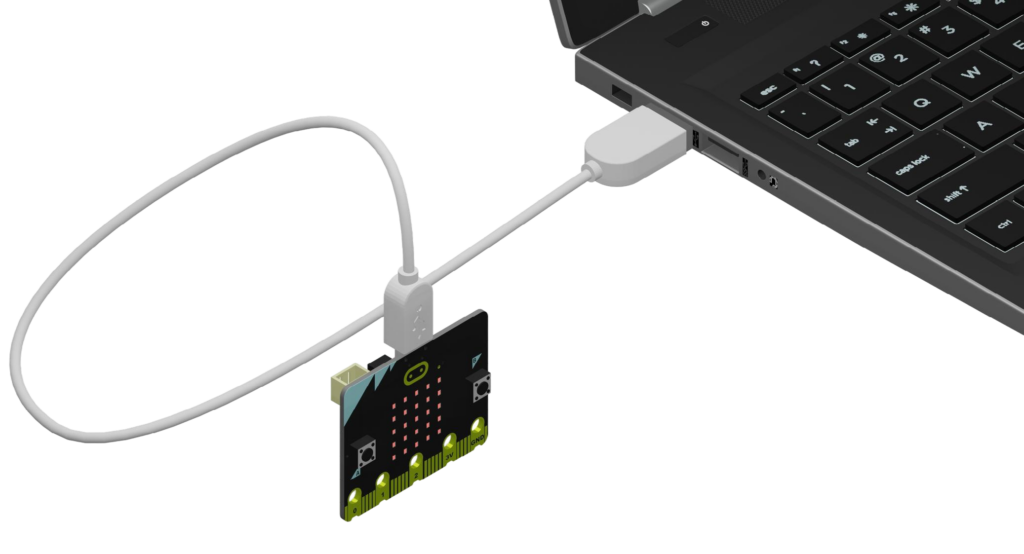
- A USB cable to connect each micro:bit to a computer.
- A computer running MicroChat in Chrome or Edge.
- Any Climate Action Kit components the project uses.
Getting started
- Go to microchat.co and log in or sign up as an educator.
- Invite your students to your session.
- Ask students to describe, in their own words, what they want their micro:bit to do. For example: "Use the soil moisture sensor and the water pump to water my plant."
- MicroChat generates the code. Students can look at it as blocks or JavaScript.
- Students connect their micro:bit to the computer with the USB cable and download the program onto it.
- Students test the program on their micro:bit, then answer the AI guide's questions about how the code works.
Ready-made MicroChat projects and resources
If you'd like a structured starting point, we have free MicroChat material you can use straight away:
- Projects: browse the Projects page and filter by MicroChat. Examples include Disco Pixel Party with MicroChat, which turns the kit's LED component into a colour-changing light, and the Hour of AI: Classroom Climate Checker, which uses the micro:bit's built-in temperature sensor.
- Educator resources: the MicroChat educator resources include a printable student worksheet (in English and French), an intro activity and train-the-trainer workshop slides.
- Free licences: through the AI Ready Grant, Forward Education offers free MicroChat classroom licences, lesson materials and professional development support. Find out more in our guide to teaching AI literacy with micro:bit.
Have a question about MicroChat? Contact support and we'll be happy to help.
Share your lesson ideas
To send us your ideas:
- Go to our Contact Us page.
- Fill out the form.
- Select General Inquiry.
- Describe the lesson or content you'd like to see, then submit the form.
Contact Us
Last updated January 27, 2026